




Ingest Windows Events into Cribl Search
Collect Windows Event Forwarder logs from WEF servers to store them in Cribl Search for fast analysis.
Before You Begin
On the Cribl Search side, you’ll need:
- Cribl.Cloud Enterprise. For details, see Pricing.
- Search Editor Permission, or higher. Learn who can do what at Cribl Search Permissions.
On the WEF server side, you’ll need:
- WEF that’s set up and enabled.
- WEF client(s) that are pointed to WECs.
- Either client certificate or Kerberos authentication configured. For details, see these Cribl Stream docs:
You don’t need Cribl Stream, Edge, or Lake. (Looking for the Windows Event Forwarder Source in Cribl Stream instead?)
1. Add a Lakehouse Engine
See Lakehouse Engines in Cribl Search.
2. Set Up Your Search Datasets
Create the Search Datasets you’ll route events into, and set their retention. See Create Search Datasets.
3. Add a Windows Event Forwarder Source in Cribl Search
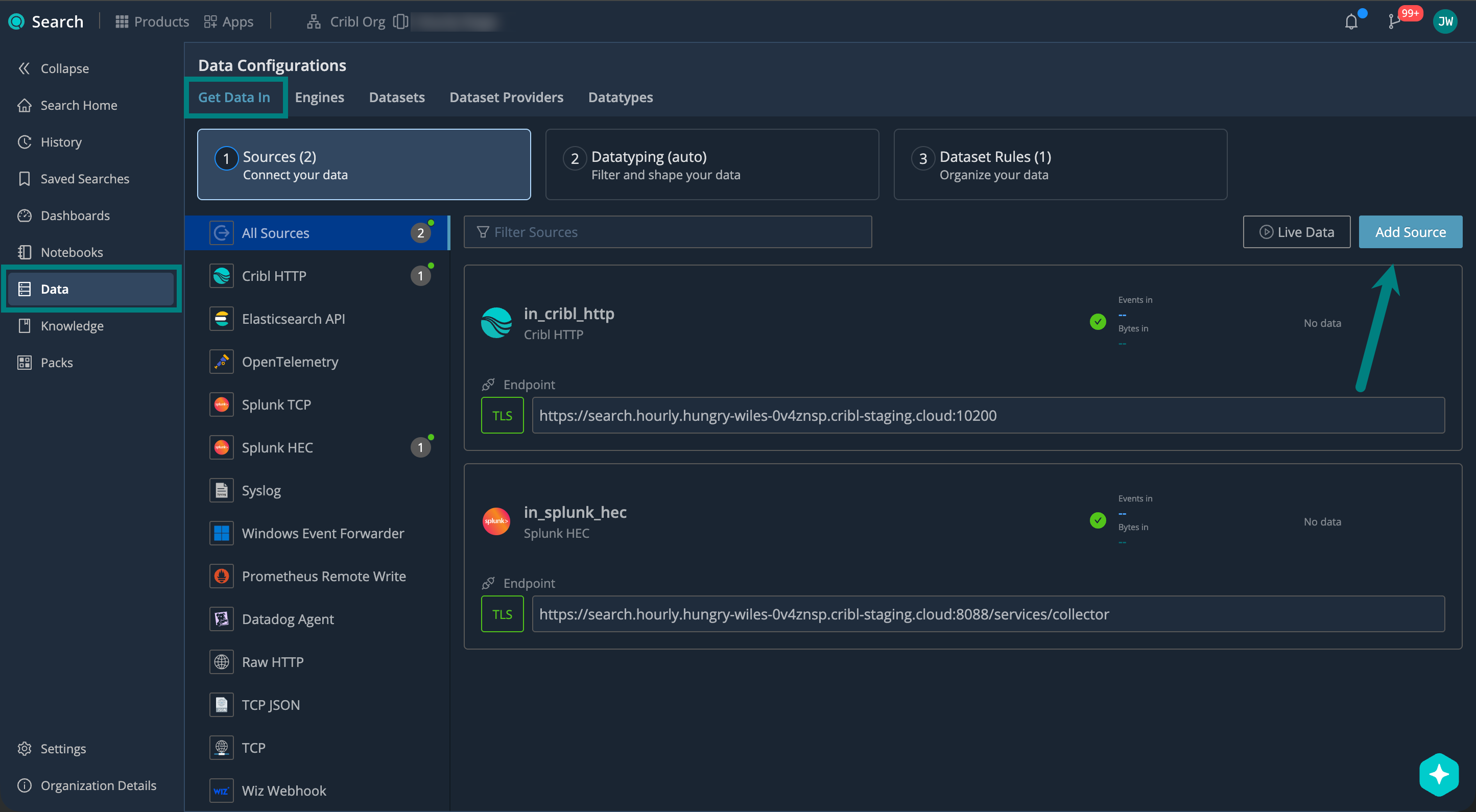
On the Cribl.Cloud top bar, select Products > Search > Data > Add Source > Windows Event Forwarder.
Describe Your Source
Under General, configure:
| Setting | Description | Example |
|---|---|---|
| ID | Source ID, unique across your Cribl.Cloud Workspace. Use letters, numbers, underscores, hyphens. | wef_prod |
| Description | Describe your Source so others know what it’s for. | Ingests WEF from prod servers |
| Address | Hostname (FQDN) that your WEF client connects to. | search.main.foo-bar-abc123.cribl.cloud |
| Port | Network port to listen on. Keep the default unless it conflicts with another service. | 5986 (default) |
Set Up Authentication and Encryption
You can authenticate incoming connections to your Source using either client certificate or Kerberos authentication.
First, set up a client certificate on the WEF server side. See
Client Certificate Authentication for Windows Event Forwarder.
Then, under
Authentication, select Client certificate, and configure:
| Setting | Description | Example |
|---|---|---|
| Certificate | Certificate name. Select a certificate, or Create a new one. (See Cribl Stream docs.) | search.cribl.cloud |
| Private key path | Path to the PEM-formatted private key file on the server. Enter the file path. Supports $ENV_VARS. | /etc/ssl/private/wef.key |
| Passphrase | Passphrase for decrypting the private key, if encrypted. Enter the passphrase. Use a secure secret input. | myPassphrase |
| Certificate path | Path to the PEM-formatted server certificate file on the server. Enter the file path. Supports $ENV_VARS. | /etc/ssl/certs/wef.crt |
| CA certificate path | Path to the PEM-formatted CA certificate file on the server. Enter the file path. Supports $ENV_VARS.If multiple certificates are present in a .pem file, each must directly certify the one preceding it. | /etc/ssl/certs/ca.crt |
| Common name | Regex to validate the peer certificate’s CN or SANs. Enter a regex pattern. If SANs are present, matching is against SANs and CN is ignored. | ^worker\.cribl\.local$ |
| Minimum TLS version / Maximum TLS version | Minimum and maximum TLS versions to accept. Recommended: Min 1.2, Max 1.3. | Min 1.2, Max 1.3 |
| Verify certificate via OCSP | Enable OCSP revocation checking for client certificates. | Yes |
| Strict validation | Toggle that controls how OCSP errors are handled. Enable to fail on any OCSP error. Disable to fail only on revocation errors. | Enabled |
First, set up Kerberos on the WEF server side. See
Kerberos Authentication for Windows Event Forwarder.
Then, under
Authentication, select Kerberos, and configure:
| Setting | Description | Example |
|---|---|---|
| Service principal name | Service Principal Name (SPN) that identifies this service in the Kerberos realm. Enter in the format HTTP/<fqdn>@REALM. Case-sensitive. Must match the form used to export the keytab. | HTTP/wef.cribl.local@CRIBL.LOCAL |
| Keytab location | Path to the keytab file containing the service principal credentials. | /etc/krb5.keytab (default) |
4. Set Up Datatyping
Configure Datatype rules to parse, filter, and normalize your data into structured fields. We call this process Datatyping.
On the Cribl.Cloud top bar, select Products > Search > Data > Datatyping (auto). Here, you can:
- Use Auto-Datatyping to parse your data automatically.
- Check for uncategorized data that didn’t match any Datatype rules.
- Handle the uncategorized data by adding custom Datatype rules.
See also:
- Datatypes in Cribl Search
- v2 Datatypes in Cribl Search
- List of Stock v2 Datatypes
- Add a Custom v2 Datatype
5. Set Up Dataset Rules
Configure Dataset rules to route the parsed events into your Search Datasets.
On the Cribl.Cloud top bar, select Products > Search > Data > Datasets: Organize Your Data, and see Organize Data with Dataset Rules for details.
6. Set Up Your WEF Client
Configure your WEF client to forward events to your Cribl Search Source.
For details, see the Cribl Stream docs: Windows Event Forwarder Source in Cribl Stream.
7. Start Sending Data and Verify
Start sending events from your Windows Event Forwarder, and verify that they’re successfully flowing into Cribl Search.
On the Cribl.Cloud top bar, select Products > Search > Data > Live Data.
Here, check for your Windows Event Forwarder Source. For details, see Live Data.
Next Steps
Now that your data is in Cribl Search, you can start using it. For example: