





Ingest Elasticsearch Data into Cribl Search
Collect data via the Bulk API from Beats or Elastic Agents to store it in Cribl Search for fast analysis.
Before You Begin
You’ll need:
- Cribl.Cloud Enterprise. For details, see Pricing.
- Search Editor Permission, or higher. Learn who can do what at Cribl Search Permissions.
- A Beats, Elastic Agent, or other Elasticsearch bulk API sender that can reach Cribl Search over HTTP(S).
You don’t need Cribl Stream, Edge, or Lake. (Looking for the Elasticsearch API Source in Cribl Stream instead?)
To query your Elasticsearch or OpenSearch index without moving data into Cribl Search, see Connect Cribl Search to Elasticsearch or Connect Cribl Search to OpenSearch.
1. Add a Lakehouse Engine
See Lakehouse Engines in Cribl Search.
2. Set Up Your Search Datasets
Create the Search Datasets you’ll route events into, and set their retention. See Create Search Datasets.
3. Add an Elasticsearch API Source in Cribl Search
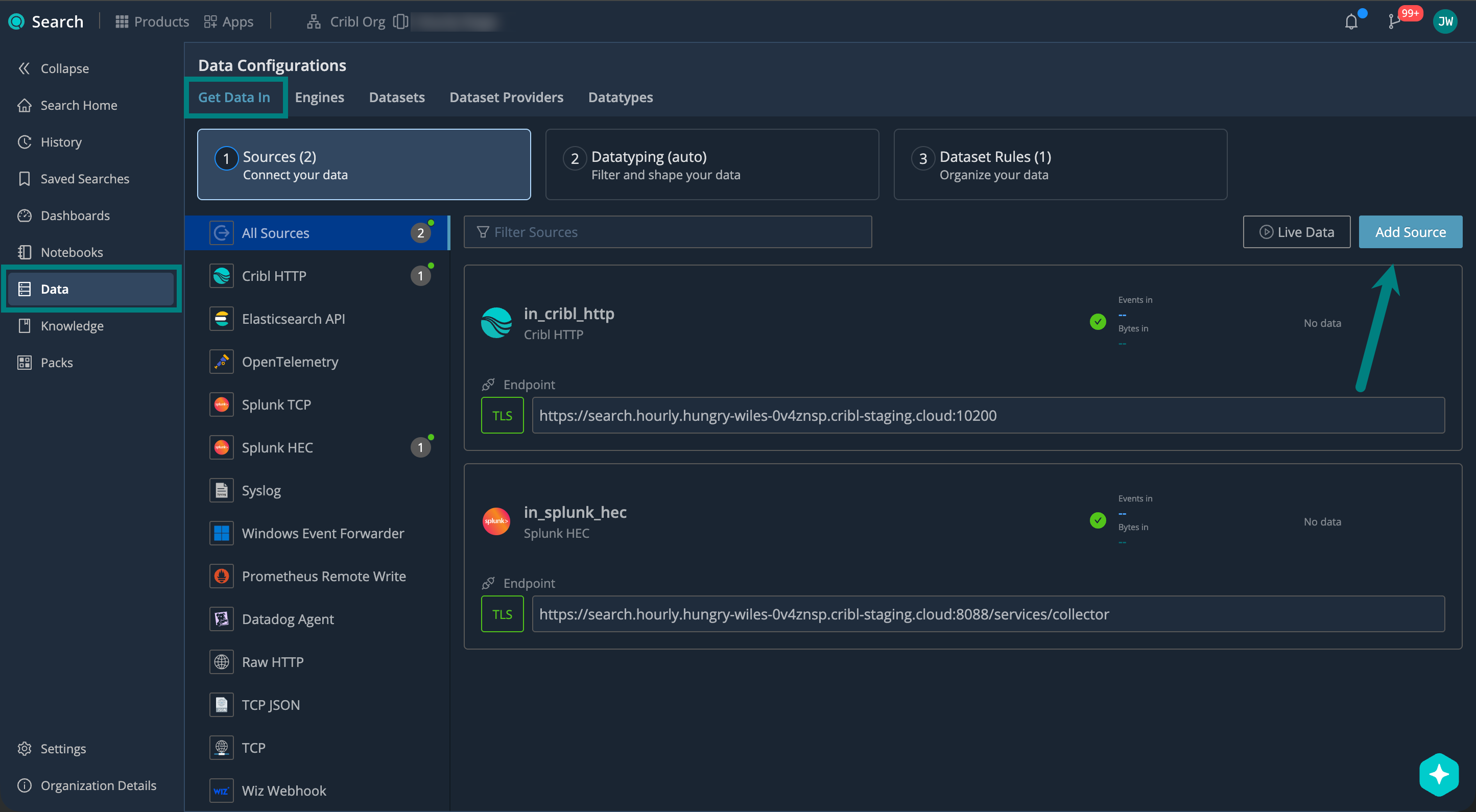
On the Cribl.Cloud top bar, select Products > Search > Data > Add Source > Elasticsearch API.
Describe Your Source and Set the API Endpoint
Under General, configure:
| Setting | Description | Example |
|---|---|---|
| ID | Source ID, unique across your Cribl.Cloud Workspace. Use letters, numbers, underscores, hyphens. | elastic_api_prod |
| Description | Describe your Source so others know what it’s for. | Ingests API from prod Beats |
| Address | Hostname (FQDN) that your upstream sender connects to. You’ll need this to set up your upstream sender. | search.main.foo-bar-abc123.cribl.cloud |
| Port | Network port to listen on. Keep the default unless it conflicts with another service. | 9200 (default) |
| Elasticsearch API endpoint | Base path on which to listen for Elasticsearch API requests. Defaults to /.Cribl Search automatically handles these sub-paths: _bulk<indexName>/_bulk | /myPathHandles: /myPath/_bulk/myPath/<indexName>/_bulk |
Set up Authentication
Use authentication to make sure only authorized senders can push data to your Cribl Search Source.
Under Authentication, select the Authentication type you want to use:
No authentication. Use only for testing or trusted internal networks.
Create a username and password. This is what your upstream sender will need to provide when sending data to your Source endpoint.
| Setting | Example |
|---|---|
| Username | elastic_user |
| Password | ******** |
Authenticate using a stored credentials secret instead of entering a username and password directly. This keeps credentials out of your Source configuration and makes them easier to rotate.
| Setting | Description | Example |
|---|---|---|
Credentials secret | Reference to a stored text secret that holds the credentials (username and password). Select a secret or Create a new one. (See Create and Manage Secrets in Cribl Stream). | sec_elastic_creds |
Create bearer tokens. This is what your upstream sender will need to provide in the authorization header.
Select
Add Token, then enter a token text or Generate a random one.
Set Up Encryption
TLS encryption protects your data in transit between upstream senders and your Cribl Search Source. New Sources have TLS enabled by default, with TLS 1.2 as the minimum version.
Under Encrypt, you can review or adjust the Minimum TLS version you want to accept:
| TLS Version | When to Use |
|---|---|
| 1.3 | Provides the strongest security. Use when your clients support it. |
| 1.2 | The default. Use for broad client compatibility. |
| Older than 1.2 | Avoid if possible. These versions are no longer considered secure. |
Select Save to create the Source.
4. Set Up Datatyping
Configure Datatype rules to parse, filter, and normalize your data into structured fields. We call this process Datatyping.
On the Cribl.Cloud top bar, select Products > Search > Data > Datatyping (auto). Here, you can:
- Use Auto-Datatyping to parse your data automatically.
- Check for uncategorized data that didn’t match any Datatype rules.
- Handle the uncategorized data by adding custom Datatype rules.
See also:
- Datatypes in Cribl Search
- v2 Datatypes in Cribl Search
- List of Stock v2 Datatypes
- Add a Custom v2 Datatype
5. Set Up Dataset Rules
Configure Dataset rules to route the parsed events into your Search Datasets.
On the Cribl.Cloud top bar, select Products > Search > Data > Datasets: Organize Your Data, and see Organize Data with Dataset Rules for details.
6. Set Up Your Elasticsearch Sender
Configure your upstream Beats, Elastic Agent, or other Elasticsearch bulk API sender to send data to Cribl Search.
You’ll need these details from your Source configuration:
| Name | Example |
|---|---|
| Address | search.main.foo-bar-abc123.cribl.cloud |
| Port | 9200 (default) |
| Username / Password Or, Token | elastic_user / ********420 |
Example: Beats > Cribl Search
Edit the Beats YAML configuration file, using the following example. For details, see Elastic docs.
Replace the example address (search.main.foo-bar-abc123.cribl.cloud), username, password, and port (if you changed the
default 9200) with your Source values.
output.elasticsearch:
  hosts: ['https://search.main.foo-bar-abc123.cribl.cloud:9200']
  username: 'your_username'
password: '********'Replace the example address (search.main.foo-bar-abc123.cribl.cloud), token, and port (if you changed the default
9200) with your Source values.
output.elasticsearch:
  hosts: ['https://search.main.foo-bar-abc123.cribl.cloud:9200']
  headers:
Authorization: '420'7. Start Sending Data and Verify
Start sending events from your upstream Elasticsearch sender, and verify that they’re successfully flowing into Cribl Search.
On the Cribl.Cloud top bar, select Products > Search > Data > Live Data.
Here, check for your Elasticsearch API Source. For details, see Live Data.
Next Steps
Now that your data is in Cribl Search, you can start using it. For example: