




Lakehouse Engines in Cribl Search
Add a lakehouse engine so you can ingest logs and metrics directly into Cribl Search.
Highlights
- Lakehouse engines store and accelerate your logs and metrics within Cribl Search.
- Storage auto-scales with your data volume and retention settings.
- Choose an engine size that covers your raw, uncompressed daily ingest. Resize or add more engines as needed.
About Lakehouse Engines
A lakehouse engine is a storage-plus-compute unit that ingests, stores, and accelerates your data inside Cribl Search. It can keep your data hot for up to 10 years, with no storage tiering to manage.
Each lakehouse engine:
- Accepts logs and metrics from one or more Sources.
- Uses Datatypes to break incoming logs into fields.
- Stores logs in Search Datasets until their retention expires.
- Provides a metrics Dataset that holds ingested metrics and backs the Metrics Explorer (Preview) and Monitors.
- Powers fast, schema-aware searches and AI workflows over that stored data.
When you send data into Cribl Search with Sources, where it lands depends on the data type:
- Logs: Datatype rules parse them into fields, then Log Dataset rules route them into the Search Datasets you create.
- Metrics: Metric Dataset rules route them into the
metricsDataset that every engine provides.
Lakehouse Engine Sizing
To choose the right lakehouse engine size, think about the amount of raw, uncompressed data you expect per day, then include headroom for spikes and growth.
If your ingest rate changes, or you experience ingest or search latency, you can resize your lakehouse engine. If the available sizes are not enough, you can add more lakehouse engines to distribute the workload.
Lakehouse Engine Sizes Available
The ingest rate limit applies only to raw incoming data, not to fields you add or transform during processing.
| Lakehouse Engine Size | Maximum Ingest per Day |
|---|---|
| Nano | 75 GB |
| Micro | 150 GB |
| X-Small | 300 GB |
| Small | 600 GB |
| Medium | 1,200 GB |
| Large | 2,400 GB |
| X-Large | 4,800 GB |
| 2X-Large | 9,600 GB |
| 3X-Large Contact Support | 14 TB |
| 4X-Large Contact Support | 19 TB |
| 5X-Large Contact Support | 24 TB |
| 6X-Large Contact Support | 28 TB |
Lakehouse Engine Compression Ratio
Cribl Search compresses ingested data at rest. The exact compression ratio depends on many factors, including the shape and content of your data. For logs, it’s typically between 10:1 and 12:1.
Lakehouse Engine Billing
Because engine size acts as a hard limit on ingest, your costs are bounded, with no surprises from traffic spikes. You can scale your lakehouse engine up or down at any time to match your actual data needs.
With each lakehouse engine, you’re charged for two things:
| Component | Billing Basis | How It’s Measured |
|---|---|---|
| Engine size | Maximum data ingest per day. | Measured at ingest, before compression, separately from any upstream Stream or Edge processing. |
| Storage | Amount of data retained over time. This auto-scales with your data volume and retention periods. | Measured after compression. Estimated compression ratio is 10:1 to 12:1. |
To estimate and optimize storage, set individual retention periods of your Search Datasets, and of the metrics Dataset
on each engine. See Planning Your Log Datasets and
The metrics Dataset for details.
To see how engine size and storage translate to costs, see Cribl Search Pricing.
See also: How Lakehouse and Federated Engines Are Billed.
Ingest Is Measured at the Engine
A lakehouse engine counts every byte it receives, regardless of any processing that happened upstream. The engine has no visibility into what your data looked like before it arrived.
This matters most when you process data in Cribl Stream or Cribl Edge before sending it to a lakehouse engine. Common processing patterns can inflate the byte count that the engine sees:
- Parsing raw events into structured formats like JSON or CSV.
- Enriching events with extra fields or lookup values.
- Keeping a copy of
_rawalongside the parsed event.
For example, if Stream receives 1 GB of raw data and reshapes it into a more verbose format, the lakehouse engine can end up ingesting 2 GB or 3 GB. Stream’s upstream ingest number and the engine’s ingest number reflect different things, so they don’t have to match.
If you don’t need Stream or Edge processing before storage, you can send data straight to a lakehouse engine. Cribl Search has native Sources such as Syslog, Splunk HEC, OpenTelemetry, and Raw HTTP that keep the engine’s ingest count aligned with the raw data volume you expect.
Cribl Search also parses incoming logs through Auto-Datatyping and Custom Datatypes v2, so in many cases you’re better off skipping Stream or Edge pre-processing altogether.
Metrics work the same way: you can send them straight in with Prometheus Remote Write or OpenTelemetry, instead of routing them through a Stream or Edge Destination.
Lakehouse Engine Retention
You don’t set retention for a lakehouse engine as a whole, but for each of its Datasets individually. After the retention period ends, Cribl Search deletes the data.
- Search Datasets can keep logs for 1 day to 10 years, and their storage scales accordingly.
metricsDatasets can keep metrics for 1 to 365 days, and default to 365 days. Cribl Search caps metrics retention at 365 days, even if the Dataset configuration accepts a longer period.
For details, see Create Search Datasets and Organize Data with Dataset Rules.
Add a New Lakehouse Engine
Search Admins and above can add lakehouse engines from the Cribl Search Engines tab.
- On the Cribl.Cloud top bar, select Products > Search > Data.
- Select the Engines tab, then Add Engine.
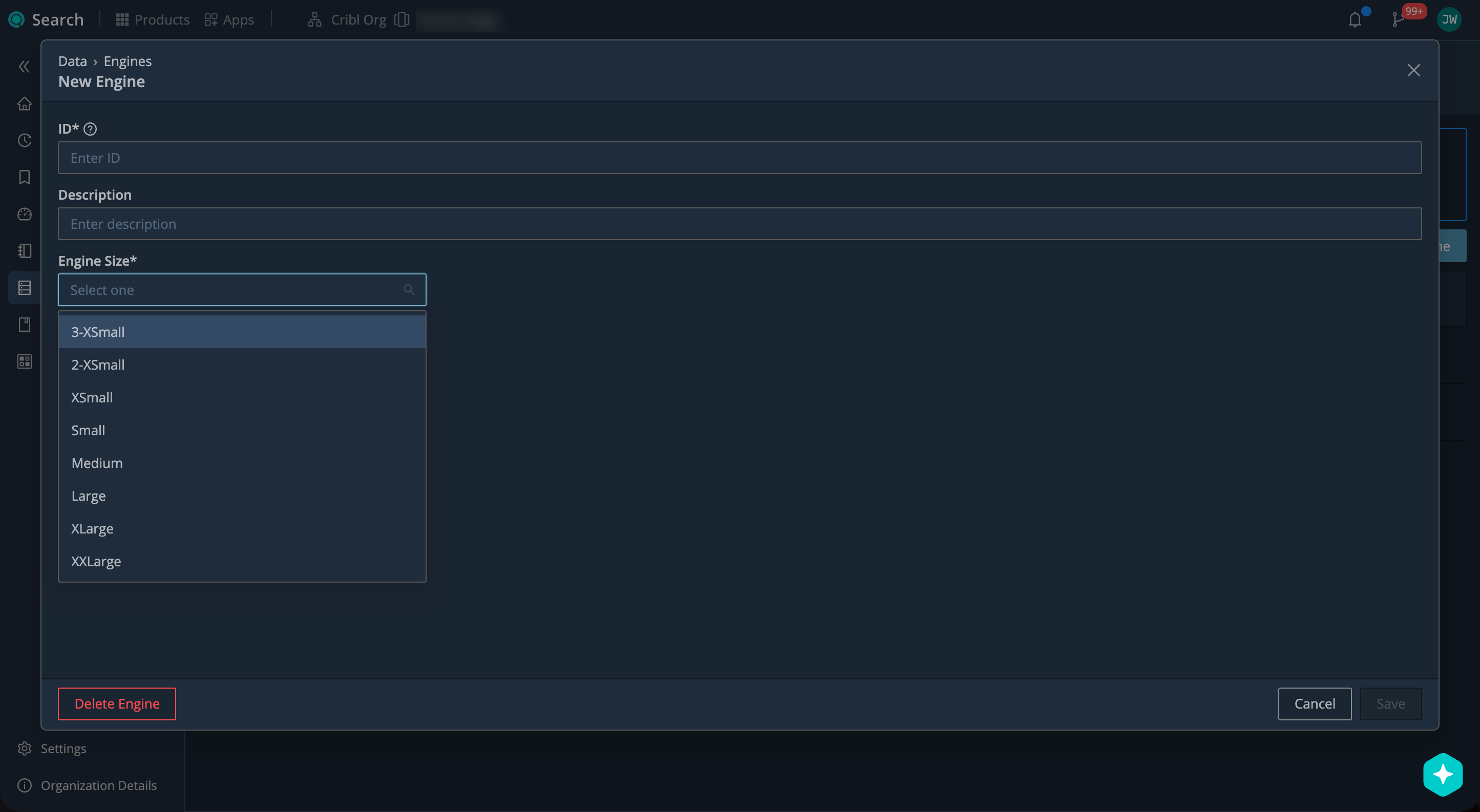
Adding a lakehouse engine in Cribl Search - Give your lakehouse engine an ID (for example,
palo_alto_logs) unique across your Workspace. You won’t be able to change it later.The
mainID is reserved. - Set the Lakehouse Engine Size. You can resize it later if needed.
- Confirm with Save.
Cribl Search starts provisioning the lakehouse engine, adding a default Cribl HTTP Source with the ID
in_cribl_http, and a metrics Dataset.
Once the lakehouse engine status becomes Ready, you can:
- Send sample data to test hypothetical ingest.
- Set up your Search Datasets for logs. Metrics need no Dataset setup, because the engine already provides its metrics Dataset.
- Connect your Sources.
Send Sample Data to a Lakehouse Engine
You can send sample data to the default in_cribl_http Source to test hypothetical ingest before you start setting up
actual Sources. The available samples are log events, so use a metrics Source to test metrics ingest.
- On the Cribl.Cloud top bar, select Products > Search > Data > Get Data In.
- Under the default Cribl HTTP Source (
in_cribl_http), select Send Sample Data. - Select the Sample Type (for example, Palo Alto Traffic). You can edit the sample payload as you like.
- Select Send Sample Data.
- Go to the Logs page and run a search to see how the sample data was ingested.
If you don’t have any Search Datasets yet, you can run a query like:
dataset="main" | limit 10
To verify real data ingest, use Live Data. For complete verification, query the target Search Dataset directly.
Check Lakehouse Engine Status
You can check the status of a lakehouse engine in the Cribl Search Engines tab.
From the Cribl.Cloud top bar, select Products > Search > Data > Engines. Look at the Status column.
| Status | Meaning |
|---|---|
| Provisioning | Setting up the lakehouse engine. |
| Delayed | Setup is taking longer than expected. |
| Failed | Lakehouse engine hit an error and can’t recover. |
| Ready | Lakehouse engine is fully operational. |
| Blocked | Lakehouse engine is down and trying to recover. |
| Resizing | Lakehouse engine size is being changed. |
| Terminated | Lakehouse engine is being deleted. |
Resize a Lakehouse Engine
Search Admins and above can resize lakehouse engines from the Cribl Search Engines tab.
- On the Cribl.Cloud top bar, select Products > Search > Data > Engines.
- Select the lakehouse engine you want to resize.
- Set the new lakehouse engine Size. See Lakehouse Engine Sizes.
- Confirm with Save.
Wait until the lakehouse engine status changes from Resizing to Ready again.
Delete a Lakehouse Engine
Search Admins and above can delete lakehouse engines from the Cribl Search Engines tab. This is irreversible.
When you delete a lakehouse engine, here’s what happens to its Datasets:
- All Search Datasets on the engine are removed, along with the data they contain.
- If the engine hosts the
mainDataset,mainmoves to another lakehouse engine that you pick, but wipes all its data. You keepmain’s ID, retention, and schema, but start ingesting data from scratch. - Cribl Search deletes the engine’s metrics Dataset with the engine, and never moves it, because its metrics live in that engine’s storage. Cribl Search then repoints the Metrics catch-all rule to a surviving engine’s metrics Dataset.
To delete a lakehouse engine:
- On the Cribl.Cloud top bar, select Products > Search > Data > Engines.
- Select the lakehouse engine you want to delete.
- Select Delete Engine.
- If the engine hosts the
mainDataset, select another lakehouse engine in Move Dataset to, then select Next. If you don’t have another lakehouse engine, add one first. - Type
DELETEto confirm, then select Delete Engine again.
Next Steps
Now that your lakehouse engine is ready, create Search Datasets to organize your logs and set retention. For metrics, go straight to connecting a metrics Source, because the engine already provides a metrics Dataset.