




Write Log Queries with Cribl Copilot
Use the Cribl Copilot KQL assistant to generate Kusto Query Language expressions from natural language.
The Cribl Copilot KQL assistant enables you to define log queries in natural language. The assistant translates these into Kusto Query Language (KQL). You can use all basic KQL features - including grouping, aggregating, filtering, and sorting - without having to write anything in KQL. You’ll usually get results in around 5 to 30 seconds.
Additional options here are:
Selecting from automatically suggested follow-up queries.
Pasting KQL queries into the assistant to generate natural-language summaries of their logic.
Pasting problematic KQL queries into the assistant, to debug syntax that’s triggered errors.
Cribl AI is available by default. To manage AI features and model providers for all Cribl products in your Organization, select ⚙️ Settings > Global > AI Settings. See Cribl AI Availability for details.
Select from Follow-Up Log Query Suggestions
On the Logs page, below the query box, a Follow-up queries group suggests queries that you might find useful. Suggestions draw on your most recently used query and Dataset, and on other recent search history.
To hide or show these suggestions, select the settings button beside the query box, then turn Follow-up queries off or on. This switch appears only when Cribl AI is available.
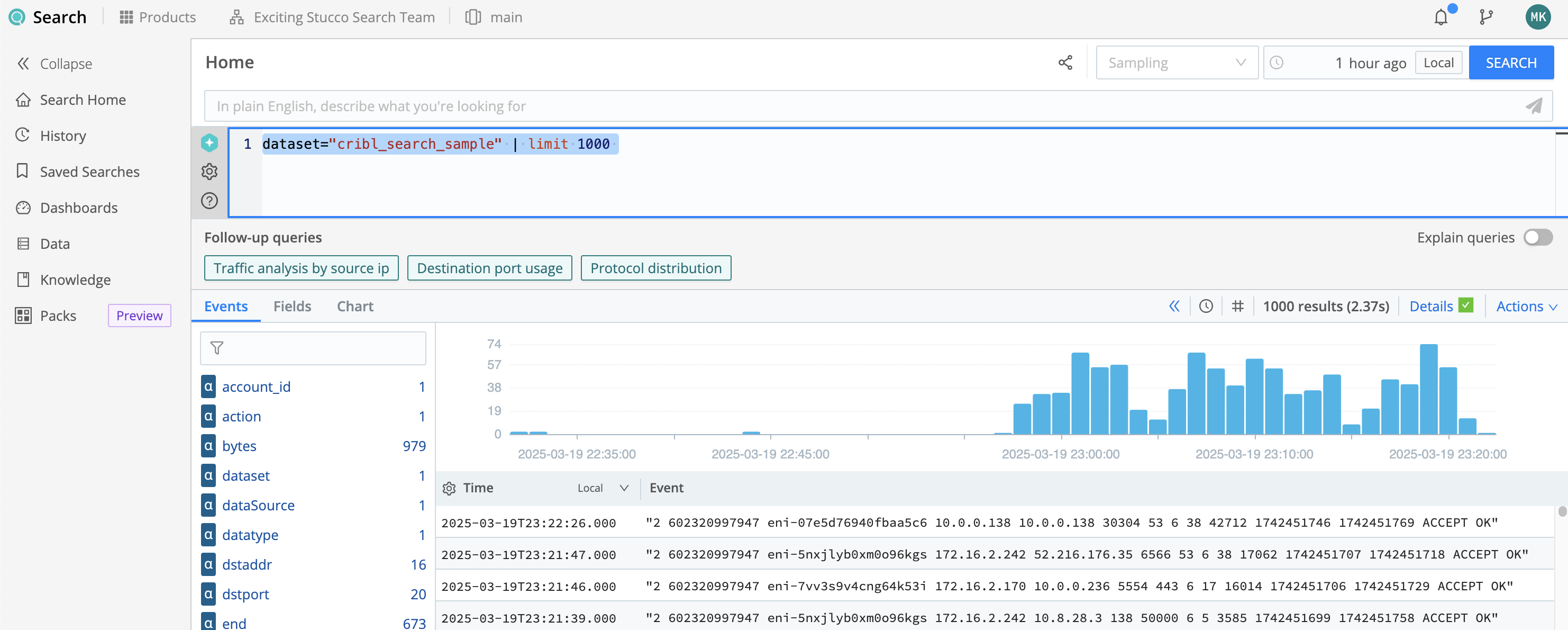
You have multiple options to respond to these suggestions, covered in the following subsections.
Accept a Suggestion
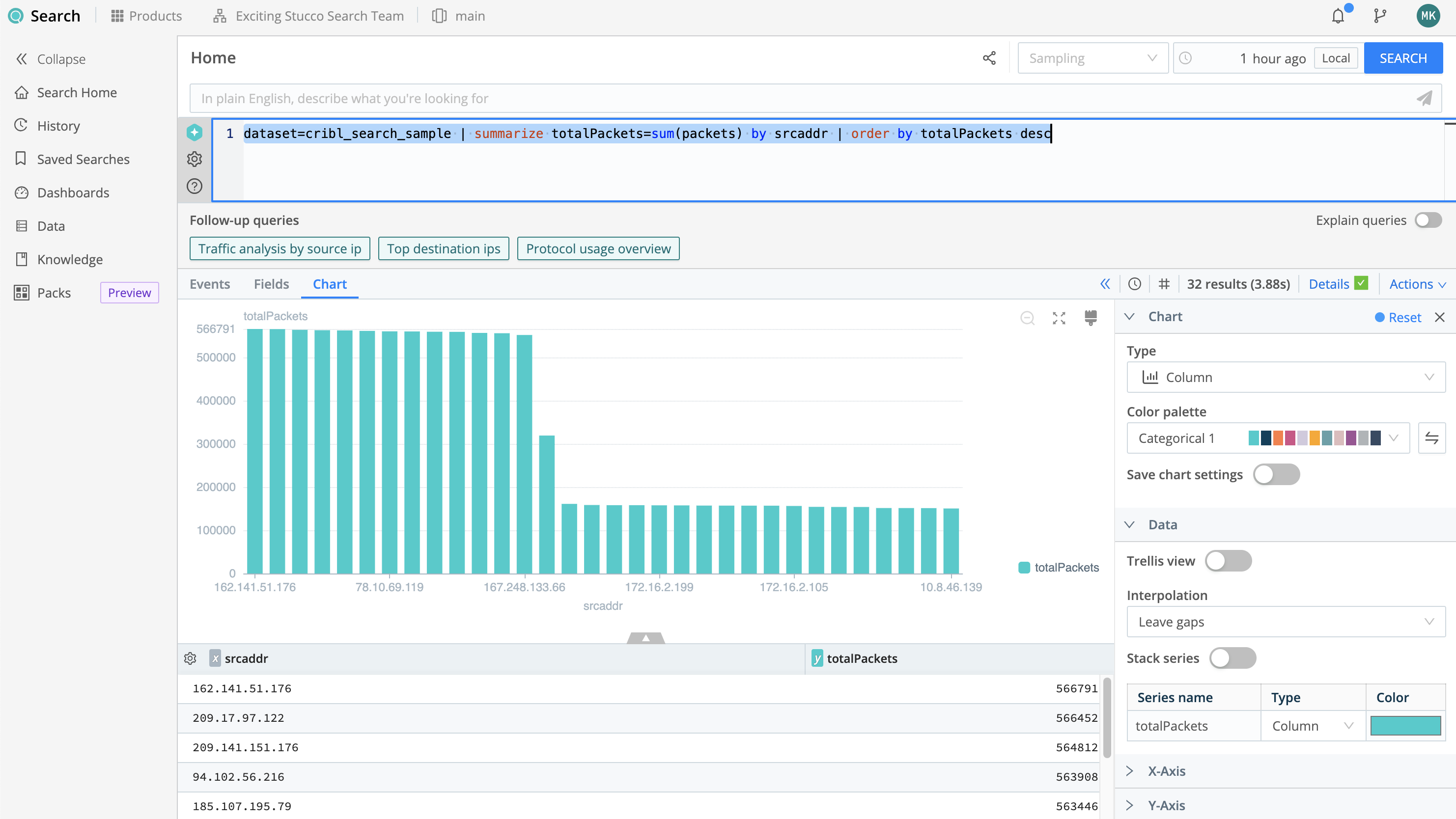
You can select one of the three follow-up query tiles. As shown below, this will immediately execute the query, while placing it in the query box for you to refine, as desired.
Request Explanations
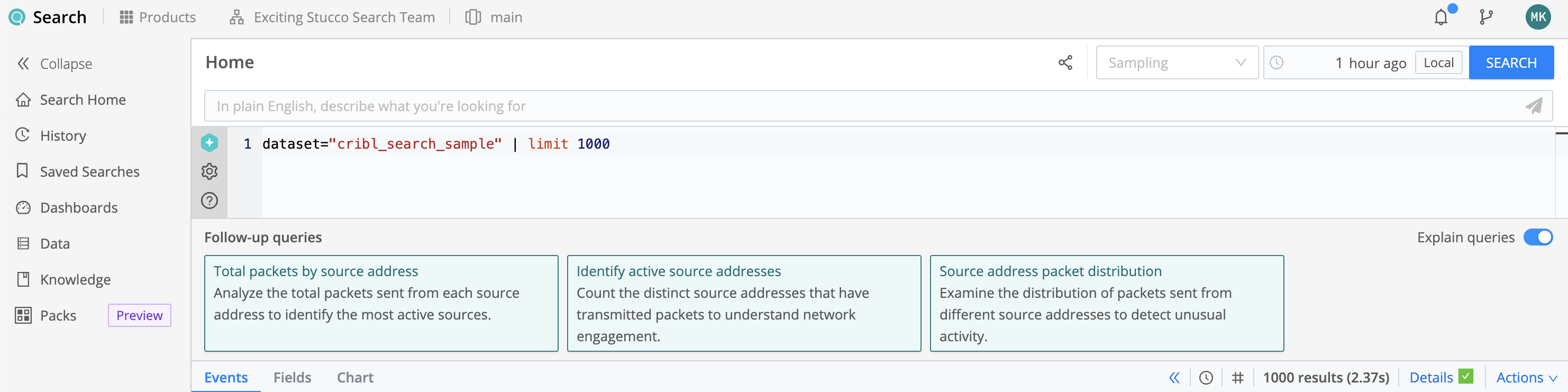
You can toggle on Explain queries to expand all the suggested-query tiles. This will reveal details about each suggestion.
Roll Your Own
You can simply ignore the suggestions, and build your new follow-up queries in the query box. Or, use the upper query box to describe your desired search in plain (natural) language. As described in the next section, Cribl Copilot will generate a corresponding query in KQL.
Generate a Log Query Using Cribl Copilot
To generate a KQL log query from natural language:
- On the Logs page, beside the search query box, select Build Query . Once the query box already contains a query, this button collapses to the icon alone.
- In the box that opens, describe what you want to find, using ordinary language.
- Select Generate KQL
 to translate your description into KQL.
 - Edit the resulting query if you want to make it more precise, and then select Search.
You can also use the Cribl Copilot chatbot to generate queries. Select the Cribl Copilot button at the bottom right of any page, and then from the left drop-down select Generate KQL.
Unlike the KQL assistant, the chatbot has no access to Cribl Search, your query history, or your Datasets. So KQL generation here is limited. However, this might be a good option for organizations with strict privacy policies.
How to Use Prompts Successfully
To ensure the best results from your natural language query:
Be specific. If you know the names of specific Datasets or fields, or have other constraints, include these in the prompt. Example:
Sort results by column <my_timestamp>Refine your queries. If the generated query is not exactly what you were looking for, refine your request to improve the result.
Provide feedback. Select the thumbs-up or thumbs-down button to share feedback on responses. This helps improve the accuracy and relevance of Cribl Copilot.
How the KQL Assistant Works
When you enter a natural language query using the Cribl Copilot KQL assistant, a large language model (LLM) uses information about KQL, your 10 last-used Datasets, and the query you’ve entered, and combines this information to generate a valid KQL query.