



Create and Manage Authentication Tokens
Authentication tokens are issued by the Leader Node to control and secure communication between the Leader, Outpost Nodes, Workers, and Edge Nodes.
Types of Authentication Tokens
The following authentication token types are available:
Provisioning tokens are the fundamental way to deploy new Stream Workers, Edge Nodes, and Outposts, and connect them to the Leader Node.
You can later manage, rotate, and revoke provisioning tokens and track their usage in the UI.
Environment tokens are authentication tokens you use for programmatic deployments, such as deployment using Docker Compose or Helm charts.
Authentication Tokens in New Deployments
New on-prem Cribl Edge deployments include no built-in provisioning tokens. You need to create a token to connect any hybrid Stream Workers, Edge Nodes, or Outposts to the Leader.
Cribl.Cloud deployments handle tokens for Cribl-managed Worker Groups in Cribl Stream automatically. However, you still need to create tokens for authenticating Outpost Nodes, Edge Nodes, and Workers in customer-managed (hybrid) Worker Groups.
Authentication Tokens in Upgraded Deployments
Cribl Edge deployments created on versions older than 4.20 used a different authentication token mechanism. On upgrade to 4.20, those deployments will automatically receive one legacy type token set to the value of the existing auth token.
Cribl recommends rotating the legacy token to a new provisioning token at your earliest convenience.
Create a New Provisioning Token
To create a new provisioning token:
In the sidebar, select Settings, then select Global.
Select Security, then Provisioning Tokens.
Select Create Token.
Enter a Token ID. Once the token is created, you can’t change this ID.
Optionally, enter a Description that will help identify the proper token to use.
Confirm with Create Token.
You will be shown the newly created token. Copy it and save it in a secure place. You can also select Download to download the token as a text file.
The token will not be shown again.
Confirm with Close.
You can now use this token when creating a new Edge Node, for example, by inputting it in the Add/Update Edge Node modal.
Monitor Token Usage and Health
The list of tokens in Settings > Global > Security > Provisioning Tokens show tokens that are currently in use.
Each token has a status:
- Active - can be used for connecting Stream Workers, Edge Nodes, and Outposts.
- Revoked - has been revoked and can no longer be used by Nodes. Existing Nodes will remain connected until their next restart.
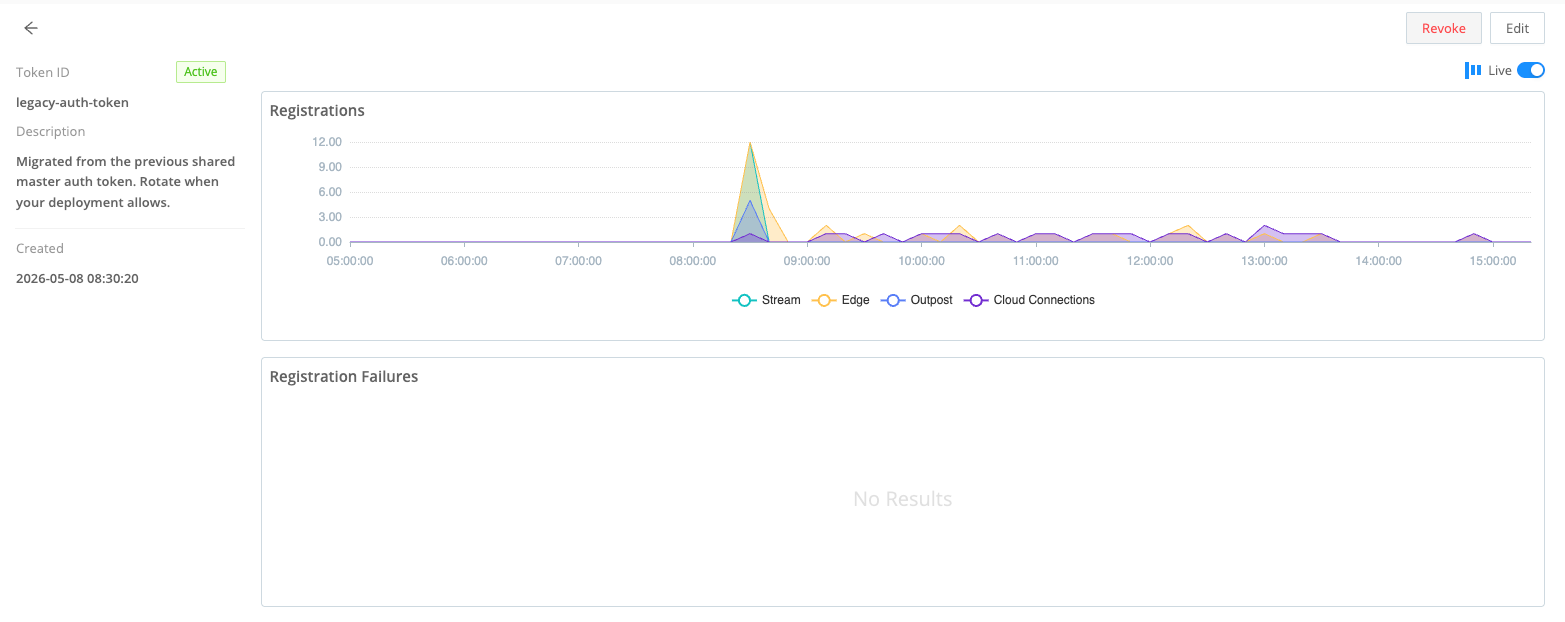
Select a token to see its details. This screen also shows you charts visualizing the number of Worker Nodes, Edge Nodes, Outposts, and Cloud Connections using this token, and the number of failed Node registrations.
Rotate a Token
Rotating lets you switch Edge Nodes to use a different token.
To rotate a token for a selection of Edge Nodes:
- On the top bar, select Products, then Edge, then Edge Nodes.
- Select the Edge Nodes you want to rotate the token for.
- Select Rotate Token.
- In Token ID, select the token you want to rotate to.
- Confirm with Rotate and Restart, or Rotate if you want to restart the Edge Nodes manually.
You must restart Edge Nodes after rotating for them to switch to connecting via the new token.
Revoke a Token
You can revoke a token to pull it back from all Edge Nodes that use it and ensure it won’t be used to connect any new Edge Nodes.
You can’t revoke the legacy token in a Cribl.Cloud deployment.
To revoke a token:
In the sidebar, select Settings, then select Global.
Select Security, then Provisioning Tokens.
Select the token you want to revoke.
Select Revoke. You will see a modal asking for confirmation. Type
REVOKEto confirm.You can’t undo revoking a token.
Confirm with Revoke Token.
Restart the Edge Nodes you revoked the token for.
Token revocation will come into force only after you restart the Edge Nodes.
Environment Tokens
You can use environment tokens as a supplementary way of authenticating Nodes to the Leader without creating a provisioning token, for example, in scripts. Those tokens will not be visible in the UI and you cannot monitor, rotate, and revoke them like provisioning tokens.
An environment token takes the form of a string
and is passed to the Leader Node in the CRIBL_DIST_AUTH_TOKENS environment variable.
Cribl recommends using strings that contains at least 14 characters and includes uppercase letters, lowercase letters, and numbers.