


Add a Cribl Search Pack and Create a Lake Dataset with the Cribl SDK
Preview Feature
The Cribl SDKs are Preview features that are still being developed. We do not recommend using them in a production environment, because the features might not be fully tested or optimized for performance, and related documentation could be incomplete.
Please continue to submit feedback through normal Cribl support channels, but assistance might be limited while the features remain in Preview.
This code example demonstrates how to use the Cribl Python SDK for the control plane to:
Add the Search Pack named Cribl Search AWS VPC Flow Logs from the Cribl Packs Dispensary.
Create a Lake Dataset with a basic configuration: Dataset ID, Cribl Lake storage location, retention period of 30 days, and Direct Access (HTTP) disabled.
This example includes the Pack URL for Cribl Search AWS VPC Flow Logs, which is used as the value of the source parameter. To get the URL for a different Pack, see Get the URL for a Search Pack.
About Code Examples
Code examples use Bearer token authentication. Read the SDK authentication documentation to learn how to configure authentication. The API Credential that you use to obtain the Bearer token must have the necessary Permissions for the operations in the code examples.
Replace the variables in code examples with the corresponding information for your Cribl deployment.
Cribl Search and Cribl Lake are available only on Cribl.Cloud, so this page does not include examples for on-prem deployments.
Code examples do not include all available body parameters. For a complete list of body parameters for specific endpoints, refer to the documentation in the API Reference.
"""
Add a Cribl Search Pack and Create a Lake Dataset

- Installs the Cribl Search AWS VPC Flow Logs Pack from the Cribl Packs
Dispensary (https://packs.cribl.io/packs/cribl-search-aws-vpc-flow-logs).
- Creates a Lake Dataset with basic settings where you can store VPC flow log
data. Executing this file does not ingest data.

After you execute this file, update the AWS VPC Flow Logs Analysis Dashboard
in the Pack to replace the default default dataset="cribl_search_sample"
references with the DATASET_ID value used in this file.

NOTE: This example is for Cribl.Cloud deployments only.

Required to use this example:
- A Cribl.Cloud Organization ID and Workspace name, which are used to build the
base URL for the SDK calls.
- The Client ID and Secret for a Cribl.Cloud API Credential, which are used to
authenticate the SDK calls. To get the Client ID and Secret, follow
https://docs.cribl.io/cribl-as-code/sdks-auth/#sdks-auth-cloud. The Client ID
and Secret are sensitive information and should be kept private.
"""

# Import block
# Imports asyncio so that the file can run an asynchronous control plane
# sequence for authentication, Pack installation, and Lake Dataset creation.
#
# Imports CriblControlPlane as the API client from the cribl_control_plane
# SDK package.
#
# Imports model classes that provide the Python types used for API payloads
# in this file from the cribl_control_plane.models subpackage.
import asyncio

from cribl_control_plane import CriblControlPlane

from cribl_control_plane.models import Security, SchemeClientOauth

# User-supplied parameters block
# Values to use in the URL block, Authentication block, and resource
# configuration blocks. Replace the placeholder values before executing
# this file.
# The PACK_URL, PACK_ID, and DATASET_ID example values are specific to the
# Cribl Search AWS VPC Flow Logs Pack. To install a different Pack, follow
# https://docs.cribl.io/cribl-as-code/api-search-pack-lake-dataset/#get-pack-url
# and update the values for PACK_URL, PACK_ID, and DATASET_ID.
ORG_ID = "your-org-id"  # Replace with the Organization ID
WORKSPACE_NAME = "your-workspace-name"  # Replace with the Workspace name

CLIENT_ID = "your-client-id"  # Replace with the Client ID for the API Credential
CLIENT_SECRET = "your-client-secret"  # Replace with the Client Secret for the API Credential

PACK_URL = "https://packs.cribl.io/dl/cribl-search-aws-vpc-flow-logs/0.1.1/cribl-search-aws-vpc-flow-logs-0.1.1.crbl"
PACK_ID = "cribl-search-aws-vpc-flow-logs"
LAKE_ID = "default"
DATASET_ID = "aws-vpc-flow-logs-dataset"

# URL block
# Builds the base URL and Cribl Search group URL to use for the API requests
# that this file makes using the ORG_ID and WORKSPACE_NAME provided in the
# user-supplied parameters block.
base_url = f"https://{WORKSPACE_NAME}-{ORG_ID}.cribl.cloud/api/v1"
search_group_url = f"{base_url}/m/default_search"

# Workflow block
# The async function that contains the full automation and runs when you
# execute this file. Authenticates using your Cribl.Cloud API Credentials,
# installs the Search Pack, and creates a Lake Dataset.
async def main():
    # Authentication block
    # Creates an OAuth client (SchemeClientOauth) that exchanges CLIENT_ID and
    # CLIENT_SECRET from the user-supplied parameters block for a Bearer
    # token and wraps the client in Security.
    # Constructs the SDK client CriblControlPlane to make authenticated API
    # requests using the base_url from the URL block and Security, which holds
    # the Bearer token.
    client_oauth = SchemeClientOauth(
        client_id=CLIENT_ID,
        client_secret=CLIENT_SECRET,
        token_url="https://login.cribl.cloud/oauth/token",
        audience="https://api.cribl.cloud",
    )

    security = Security(client_oauth=client_oauth)
    cribl = CriblControlPlane(server_url=base_url, security=security)

    # Install Pack block
    # Installs the Cribl Search Pack (based on the User-supplied parameters
    # block) using search_group_url from the URL block and prints a
    # confirmation message.
    cribl.packs.install(
        request={
            "source": PACK_URL,
            "id": PACK_ID,
        },
        server_url=search_group_url,
    )
    print(f"✅ Installed Search Pack {PACK_ID} from Cribl Packs Dispensary")

    # Create Lake Dataset block
    # Creates a Lake Dataset (based on the User-supplied parameters block)
    # using the base URL from the URL block and prints a confirmation message.
    cribl.lakes.datasets.create(
        lake_id=LAKE_ID,
        id=DATASET_ID,
        retention_period_in_days=30,
        http_da_used=False,
        storage_location_id="cribl_lake",
    )
    print(f"✅ Created Lake Dataset: {DATASET_ID}")

# Script entry block
# Starts the async function main() with the standard library helper
# asyncio.run and prints an error message if the run fails. Runs only when you
# execute this file as the main script (not when another file imports it).
if __name__ == "__main__":
    try:
        asyncio.run(main())
    except Exception as error:
        print(f"❌ Something went wrong: {error}")
Get the URL for a Search Pack
To add a Search Pack from the Cribl Packs Dispensary or the Dispensary GitHub Repository, provide the Pack URL as the value for the source parameter in your request. The URL must be the direct URL location of the .crbl file for the Pack.
Read Pack Repositories to learn about the differences between the Cribl Packs Dispensary and the Dispensary GitHub Repository.
Here’s how to get a Pack’s URL from the Cribl Packs Dispensary:
Search the Cribl Packs Dispensary to find the Pack that you want to add. Select the Pack’s tile to open the Pack sidebar.
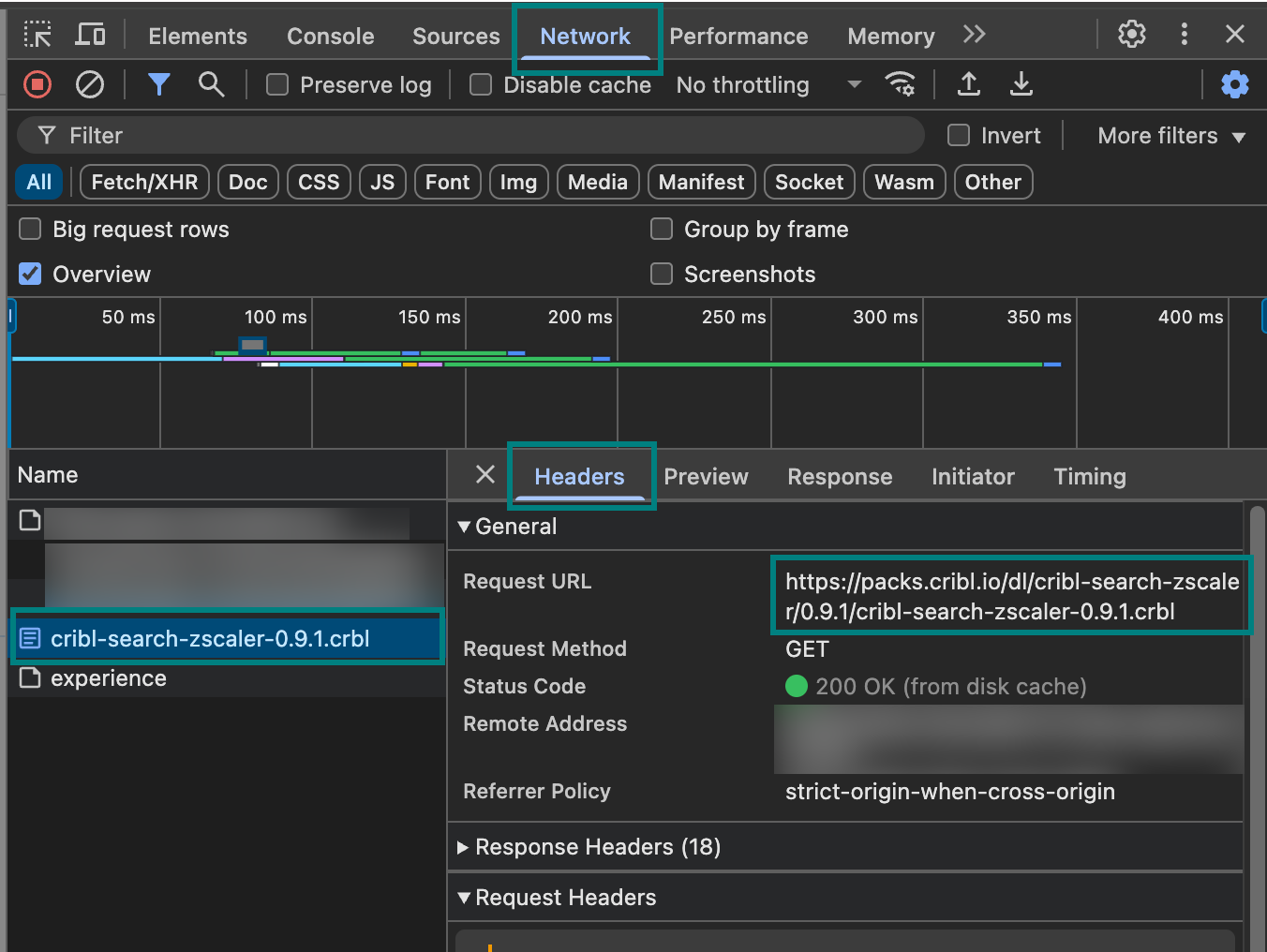
Open the developer tools for your browser and select the Network tab.
At the upper-right of the Pack sidebar, select the download icon.
In your browser’s developer tools, in the Name column, select the entry for the Pack’s
.crblfile and the Headers tab. Copy the Request URL: the copied URL is the value to provide for thesourceparameter in your request.
To get a Pack’s URL from the Dispensary GitHub Repository:
Search the Dispensary GitHub Repository to find the repository for the Pack that you want to add. Select the Pack’s repository to open it.
In the right sidebar, select Releases.
On the Releases page, find the release that you want to use and expand the Assets section.
In the Assets section, find the
.crblfile for the Pack. Right-click the.crblfile and select the option to copy the link. The copied link URL is the value to provide for thesourceparameter in your request.
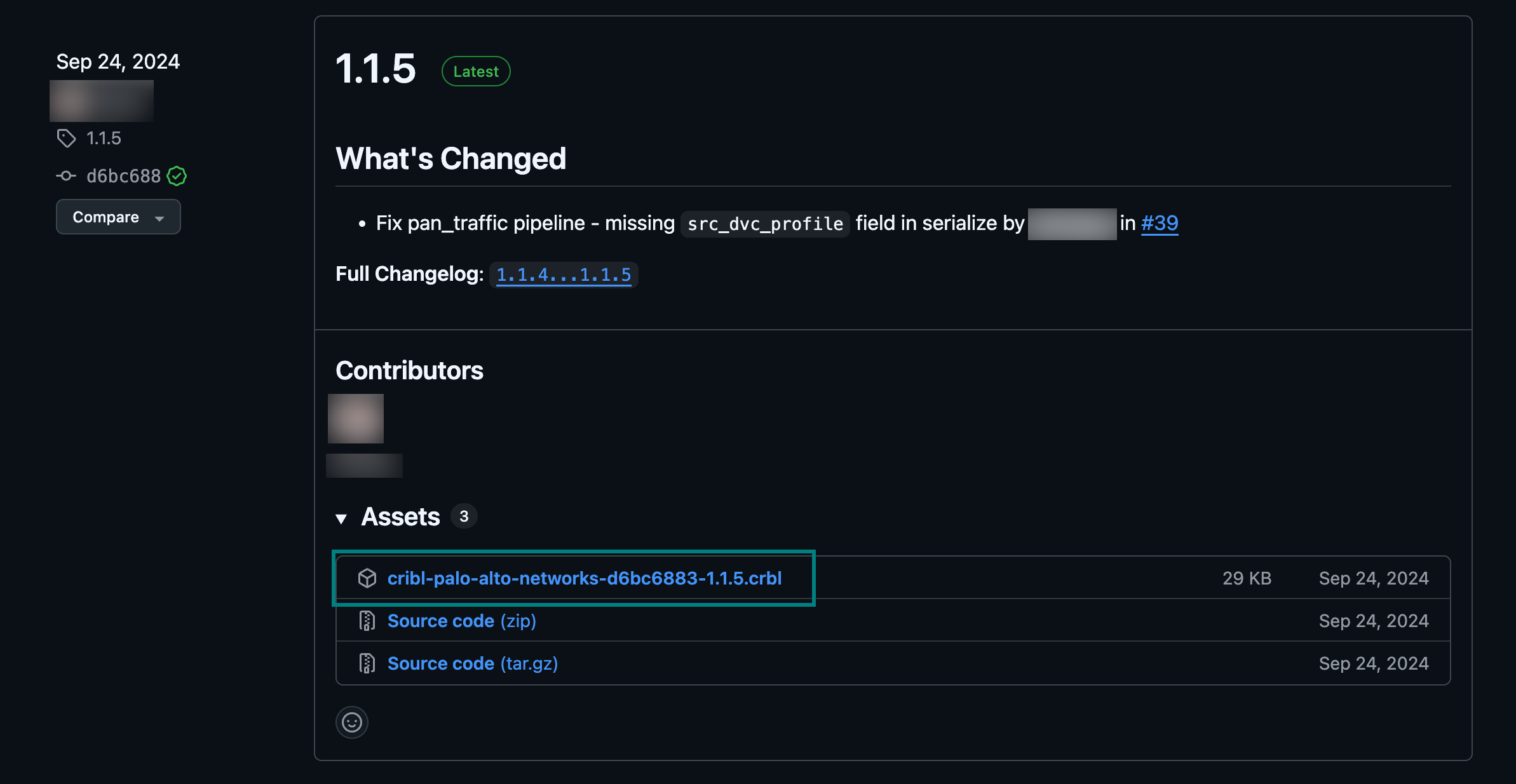
.crbl File Link to Use as the Pack URL