




These docs are for Cribl Api 4.14 and are no longer actively maintained.
See the latest version (4.20).
Authenticate with the Cribl SDKs (Preview)
Preview Feature
The Cribl SDKs are Preview features that are still being developed. We do not recommend using them in a production environment, because the features might not be fully tested or optimized for performance, and related documentation could be incomplete.
Please continue to submit feedback through normal Cribl support channels, but assistance might be limited while the features remain in Preview.
For customer-managed deployments, if you’re using SSO/OpenID Connect Authentication, you must toggle on Allow login as Local User in Cribl (see Set Up Fallback Access). You’ll need to be a Local user when you authenticate.
To use
httpsfor customer-managed requests, you must configure Transport Layer Security (TLS). If you do not configure TLS, usehttpinstead. Usehttponly for testing in development environments. In production, configure TLS and usehttpsto secure your communications.
The code examples in this topic demonstrate how to authenticate using the Cribl Python SDK for the control plane. Authentication examples are also available for the Cribl Go and TypeScript SDKs for the control plane.
Token Management Options
Except for the health.get and auth.tokens.get methods, all Cribl SDK requests require you to authenticate with a Bearer token. In Cribl, Bearer tokens are JSON Web Tokens (JWTs).
You must include a valid Bearer token in the appropriate configuration when initializing your SDK client. The Bearer token verifies your identity and ensures secure access to the requested resources. The SDKs automatically manage the Authorization header for all subsequent requests once properly authenticated.
On Cribl.Cloud, Bearer tokens are valid for
24hours.In customer-managed deployments, Bearer tokens expire according to the value you provide for the Auth token TTL setting at Settings > Global > General Settings > API Server Settings > Advanced. The default setting is
3600seconds (1hour).
To configure authentication, you can use either automatic or manual token management:
For automatic token management, you provide your OAuth credentials when you configure authentication. The SDK uses your credentials to automatically make OAuth requests to obtain a Bearer token. When the token expires, the SDK automatically refreshes the token. Automatic token management is more convenient and reliable for SDK operations.
For manual token management, you obtain a Bearer token in advance and provide the token directly in the authentication configuration. You are responsible for ensuring that applications refresh the Bearer token within the expiration window for each token.
Authenticate on Cribl.Cloud
To configure authentication on Cribl.Cloud, first create an API Credential. The API Credential provides a Client ID and Client Secret, which you must either provide in your configuration or use to obtain a Bearer token.
To create an API Credential:
Log in to Cribl.Cloud as an Owner or an Admin.
On the top bar, select Products, and then select Cribl.
In the sidebar, select Organization, and then select API Credentials.
Select Add Credential.
Enter a Name and an optional Description.
In the Organization Permissions drop-down menu, select a Role to use for defining Permissions for the Credential’s tokens.
The Organization Permissions selector is available on certain plan/license tiers. Without a proper license, all tokens are granted the Admin Role.
If you choose the User Role, under Workspace Access, define the desired Permissions for specific Workspaces.
Choosing the Admin or Owner Role automatically grants admin access to all Workspaces.
Select Save.
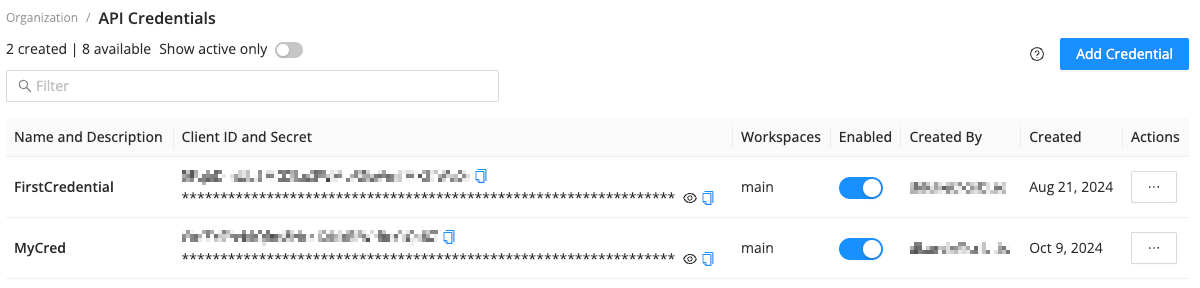
The API Credentials page displays the new API Credential within a few seconds.
The API Credential includes a Client ID and a Client Secret that Organization Owners and Admins can use to generate Bearer tokens. Organization Owners and Admins can view, edit, and disable existing API Credentials. Only Owners can delete API Credentials.
The Client ID and Client Secret are sensitive information and should be kept private.
Next, configure authentication using either automatic or manual token management.
Use Automatic Token Management (Cribl.Cloud)
To authenticate with the Cribl Python SDK (control plane) using automatic token management, replace the placeholder values in the example request with your OAuth credentials (the Client ID and Client Secret from the API Credential). Base URLs are initialized during authentication, so make sure to replace the placeholder values for your Organizaton ID and Workspace name as well.
If you prefer, you can create and save an .env file according to the SDK setup instructions instead to keep sensitive information out of your source code.
"""
Replace the placeholder values for CLIENT_ID, CLIENT_SECRET, ORG_ID,
and WORKSPACE_NAME with your Client ID and Secret, Organization ID, and
Workspace name. To get your CLIENT_ID and CLIENT_SECRET values, follow the steps
at https://docs.cribl.io/cribl-as-code/sdks-auth/#sdks-auth-cloud.
Your Client ID and Secret are sensitive information and should be kept private.

NOTE: This example is for Cribl.Cloud deployments only.
"""

import asyncio
from cribl_control_plane import CriblControlPlane
from cribl_control_plane.models import Security, SchemeClientOauth


# Cribl.Cloud configuration: Replace the placeholder values
CLIENT_ID = "your-client-id"  # Replace with your OAuth2 Client ID
CLIENT_SECRET = "your-client-secret"  # Replace with your OAuth2 Client Secret
ORG_ID = "your-org-id"  # Replace with your Organization ID
WORKSPACE_NAME = "main"  # Replace with your Workspace name

base_url = f"https://{WORKSPACE_NAME}-{ORG_ID}.cribl.cloud/api/v1"


async def main():
    # Create authenticated SDK client with OAuth2
    client_oauth = SchemeClientOauth(
        client_id=CLIENT_ID,
        client_secret=CLIENT_SECRET,
        token_url="https://login.cribl.cloud/oauth/token",
        audience="https://api.cribl.cloud",
    )

    security = Security(client_oauth=client_oauth)
    client = CriblControlPlane(server_url=base_url, security=security)
    print(f"✅ Cribl SDK client created for Cribl.Cloud deployment")

    # Validate connection, and list all git branches
    response = await client.versions.branches.list_async()
    branches = "\n\t".join([branch.id for branch in (response.items or [])])
    print(f"✅ Client works! Your list of branches:\n\t{branches}")


if __name__ == "__main__":
    try:
        asyncio.run(main())
    except Exception as error:
        status_code = getattr(error, "status_code", None)
        if status_code == 401:
            print("⚠️ Authentication failed! Check your CLIENT_ID and CLIENT_SECRET.")
        elif status_code == 429:
            print("⚠️ Uh oh, you've reached the rate limit! Try again in a few seconds.")
        else:
print(f"❌ Something went wrong: {error}")Use Manual Token Management (Cribl.Cloud)
To authenticate with the Cribl Python SDK (control plane) using manual token management, you must obtain a Bearer token to use directly as the value of CRIBLCONTROLPLANE_BEARER_AUTH when you configure authentication.
Send an API request to https://login.cribl.cloud/oauth/token, with the Client ID and Client Secret from the API Credential in the body:
curl -X POST 'https://login.cribl.cloud/oauth/token' \
--header 'Content-Type: application/json' \
--data '{
  "grant_type": "client_credentials",
  "client_id": "${clientId}",
  "client_secret": "${clientSecret}",
  "audience": "https://api.cribl.cloud"
}'As shown in the following example response, the JSON object in the response includes several attributes:
access_token: The Bearer token to provide when you configure authentication.scope: The Permissions that the Bearer token grants.expires_in: The number of seconds until the Bearer token expires. On Cribl.Cloud, Bearer tokens expire24hours (86400seconds) after they are created.token_type: The type of the token. On Cribl.Cloud, the value is alwaysBearer.
{
  "access_token": "abcdefg1234567890...exampleBearerToken",
  "scope": "user:read:workergroups user:update:workergroups user:read:connections user:update:connections user:update:workspaces user:read:workspaces",
  "expires_in": 86400,
  "token_type": "Bearer"
}After you have a Bearer token, use it to replace the placeholder value in the following example request. Base URLs are initialized during authentication, so make sure to replace the placeholder values for your Organizaton ID and Workspace name as well.
If you prefer, you can create and save an .env file according to the SDK setup instructions instead to keep sensitive information out of your source code.
"""
Replace the placeholder values for BEARER_TOKEN, ORG_ID, and WORKSPACE_NAME
with your Bearer token, Organization ID, and Workspace name. To obtain a Bearer
token, follow the steps at https://docs.cribl.io/cribl-as-code/sdks-auth/#sdks-cloud-manual.
Your Bearer token is sensitive information and should be kept private.

NOTE: This example is for Cribl.Cloud deployments only.
"""

import asyncio
from cribl_control_plane import CriblControlPlane
from cribl_control_plane.models import Security


# Cribl.Cloud configuration: Replace the placeholder values
BEARER_TOKEN = "your-bearer-token"  # Replace with a Bearer token
ORG_ID = "your-org-id"  # Replace with your Organization ID
WORKSPACE_NAME = "main"  # Replace with your Workspace name

base_url = f"https://{WORKSPACE_NAME}-{ORG_ID}.cribl.cloud/api/v1"


async def main():
    # Create authenticated SDK client with Bearer token
    security = Security(bearer_auth=BEARER_TOKEN)
    client = CriblControlPlane(server_url=base_url, security=security)
    print(f"✅ Cribl SDK client created for Cribl.Cloud deployment")

    # Validate connection, and list all git branches
    response = await client.versions.branches.list_async()
    branches = "\n\t".join([branch.id for branch in (response.items or [])])
    print(f"✅ Client works! Your list of branches:\n\t{branches}")


if __name__ == "__main__":
    try:
        asyncio.run(main())
    except Exception as error:
        status_code = getattr(error, "status_code", None)
        if status_code == 401:
            print("⚠️ Authentication failed! Check the BEARER_TOKEN.")
        elif status_code == 429:
            print("⚠️ Uh oh, you've reached the rate limit! Try again in a few seconds.")
        else:
print(f"❌ Something went wrong: {error}")Authenticate in Customer-Managed Deployments
In customer-managed (on-prem and hybrid) deployments, you can configure authentication using either automatic or manual token management.
Use Automatic Token Management (Customer-Managed Deployment)
To obtain a Bearer token for use with the Cribl Python SDK (control plane), replace the placeholder username and password in the example authentication request with your local user credentials (username and password). Base URLs are initialized during authentication, so make sure to replace the placeholder value for your server URL as well. Your username and password are sensitive information and should be kept private.
If you prefer, you can create and save an .env file according to the SDK setup instructions instead to keep sensitive information out of your source code.
"""
Replace the placeholder values for ONPREM_SERVER_URL, ONPREM_USERNAME, and
ONPREM_PASSWORD with your server URL and credentials. Your credentials are
sensitive information and should be kept private.

NOTE: This example is for customer-managed (on-prem and hybrid) deployments only.
"""

import asyncio
from cribl_control_plane import CriblControlPlane
from cribl_control_plane.models import Security

# Customer-managed (on-prem and hybrid) configuration: Replace the placeholder values
ONPREM_SERVER_URL = "http://localhost:9000"  # Replace with your server URL
ONPREM_USERNAME = "admin"  # Replace with your username
ONPREM_PASSWORD = "admin"  # Replace with your password

BASE_URL = f"{ONPREM_SERVER_URL}/api/v1"


async def main():
    # Retrieve Bearer token for authentication
    client = CriblControlPlane(server_url=BASE_URL)
    response = await client.auth.tokens.get_async(
        username=ONPREM_USERNAME, password=ONPREM_PASSWORD
    )
    token = response.token
    print(f"✅ Authenticated with on-prem server, token: {token}")

    # Create authenticated SDK client
    security = Security(bearer_auth=token)
    client = CriblControlPlane(server_url=BASE_URL, security=security)
    print(f"✅ Cribl SDK client created for on-prem server")

    # Validate connection and list all git branches
    response = await client.versions.branches.list_async()
    branches = "\n\t".join([branch.id for branch in (response.items or [])])
    print(f"✅ Client works! Your list of branches:\n\t{branches}")


if __name__ == "__main__":
    try:
        asyncio.run(main())
    except Exception as error:
        status_code = getattr(error, "status_code", None)
        if status_code == 429:
            print("⚠️ Uh oh, you've reached the rate limit! Try again in a few seconds.")
        else:
print(f"❌ Something went wrong: {error}")Use Manual Token Management (Customer-Managed Deployment)
To configure authentication by directly providing a Bearer token, you must first send a request to the /auth/login endpoint to obtain a Bearer token.
The following example request demonstrates an /auth/login request. Replace the variables in the example request with your hostname, port, and login credentials (username and password). Your username and password are sensitive information and should be kept private.
curl -X POST 'https://${hostname}:${port}/api/v1/auth/login' \
--header 'Content-Type: application/json' \
--data '{
  "username": "${username}",
  "password": "${password}"
}'The response is a JSON object like the following example. The value of the token attribute in the response is the Bearer token:
{
  "token": "Bearer abcdefg1234567890...exampleBearerToken",
  "forcePasswordChange": false
}After you have a Bearer token, use it to replace the placeholder value in the following example request. Base URLs are initialized during authentication, so make sure to replace the placeholder value for your server URL as well.
If you prefer, you can create and save an .env file according to the SDK setup instructions instead to keep sensitive information out of your source code.
"""
Replace the placeholder values for ONPREM_SERVER_URL and BEARER_TOKEN with your
server URL and Bearer token. To obtain a Bearer token, follow the steps at
https://docs.cribl.io/cribl-as-code/sdks-auth/#sdks-cust-manual. Your Bearer
token is sensitive information and should be kept private.

NOTE: This example is for customer-managed (on-prem and hybrid) deployments only.
"""

import asyncio
from cribl_control_plane import CriblControlPlane
from cribl_control_plane.models import Security

# Customer-managed (on-prem and hybrid) configuration: Replace the placeholder values
ONPREM_SERVER_URL = "http://localhost:9000"  # Replace with your server URL
BEARER_TOKEN = "your-bearer-token"  # Replace with a Bearer token

BASE_URL = f"{ONPREM_SERVER_URL}/api/v1"


async def main():
    # Create authenticated SDK client with Bearer token
    security = Security(bearer_auth=BEARER_TOKEN)
    client = CriblControlPlane(server_url=BASE_URL, security=security)
    print(f"✅ Cribl SDK client created for on-prem server")

    # Validate connection and list all git branches
    response = await client.versions.branches.list_async()
    branches = "\n\t".join([branch.id for branch in (response.items or [])])
    print(f"✅ Client works! Your list of branches:\n\t{branches}")


if __name__ == "__main__":
    try:
        asyncio.run(main())
    except Exception as error:
        status_code = getattr(error, "status_code", None)
        if status_code == 401:
            print("⚠️ Authentication failed! Check the BEARER_TOKEN.")
        elif status_code == 429:
            print("⚠️ Uh oh, you've reached the rate limit! Try again in a few seconds.")
        else:
            print(f"❌ Something went wrong: {error}")